In the article this time I will explain about wireless zero configuration (wzc) Service and error wireless zero the configuration (wzc) service.
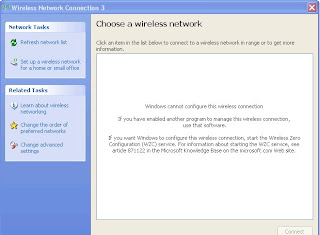
wireless zero configuration service am some service background in windows that Would in load at the time of system booting / start up. wireless zero configuration am services that Function to undertake configuration equipment wireless/wifi, so as could Go and in make function with use windows. So if wireless zero configurasi Is not enable at start up, then the equipment operation wireless/wifi can not function As it should be. The deactivating service this at the time of windows booting often is carried out So that the process booting system can be faster. Moreover this can also happen when We installed utility the equipment gift wirelss/wifi then wireless zero configuration (wzc) service would automatically in deactivate. So as if at one time we would Pass by scanning signal wireless use the program windows, then will happen eror Wireless zero configuration service. Like as to the picture when we press the switch refresh to scanning signal.
 To overcome this you could to activate come back wireless zero configuration (wzc) Service, by means of enable it so that can loading at the time of time windows start up. To carry it out follow the step is supervised this:
1. the click start the click run and typing "services.msc" (without quotation marks) after that will emerge the window services windows,
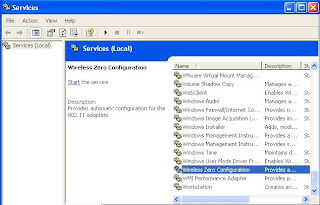
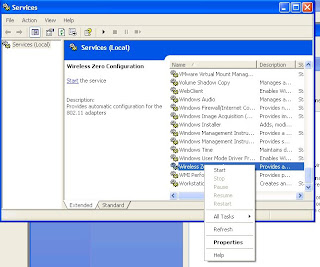
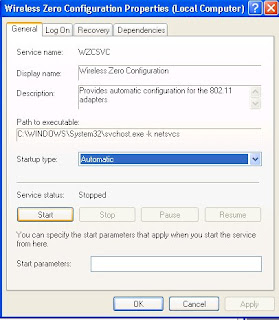
2. in windows the right part searches wireless Zero configuration service, the right click the click properties to the new window that emerges,
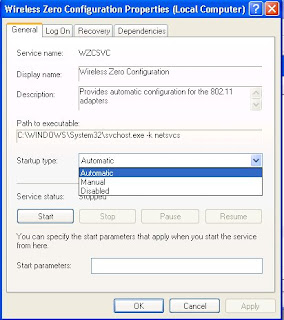
3. choose start up type automatic the next one presses the switch start to begin service, and end with the switch ok until here you have been successful enabled would so that service this go at the time of start Up, and windows could have undertaken configuration equipment wireless/wifi that is installed To your equipment.
Read More..
 To overcome this you could to activate come back wireless zero configuration (wzc) Service, by means of enable it so that can loading at the time of time windows start up. To carry it out follow the step is supervised this:
1. the click start the click run and typing "services.msc" (without quotation marks) after that will emerge the window services windows,

2. in windows the right part searches wireless Zero configuration service, the right click the click properties to the new window that emerges,

3. choose start up type automatic the next one presses the switch start to begin service, and end with the switch ok until here you have been successful enabled would so that service this go at the time of start Up, and windows could have undertaken configuration equipment wireless/wifi that is installed To your equipment.

